Sandbox Environment
TapTap IAP supports testing payment integration in the sandbox environment.
Test Flow
We recommend testing IAP in the following order:
- Add a sandbox test account in the Developer Center.
- Sign in to the game with the sandbox test account, and start an IAP purchase in your test build.
- In Checkout, select Credit/Debit Card or a saved test card as the payment method.
- Use the sandbox card numbers below according to the card payment provider used by the current order.
1. Set Up Sandbox Accounts
Go to the Developer Center and follow these steps to add sandbox test accounts:
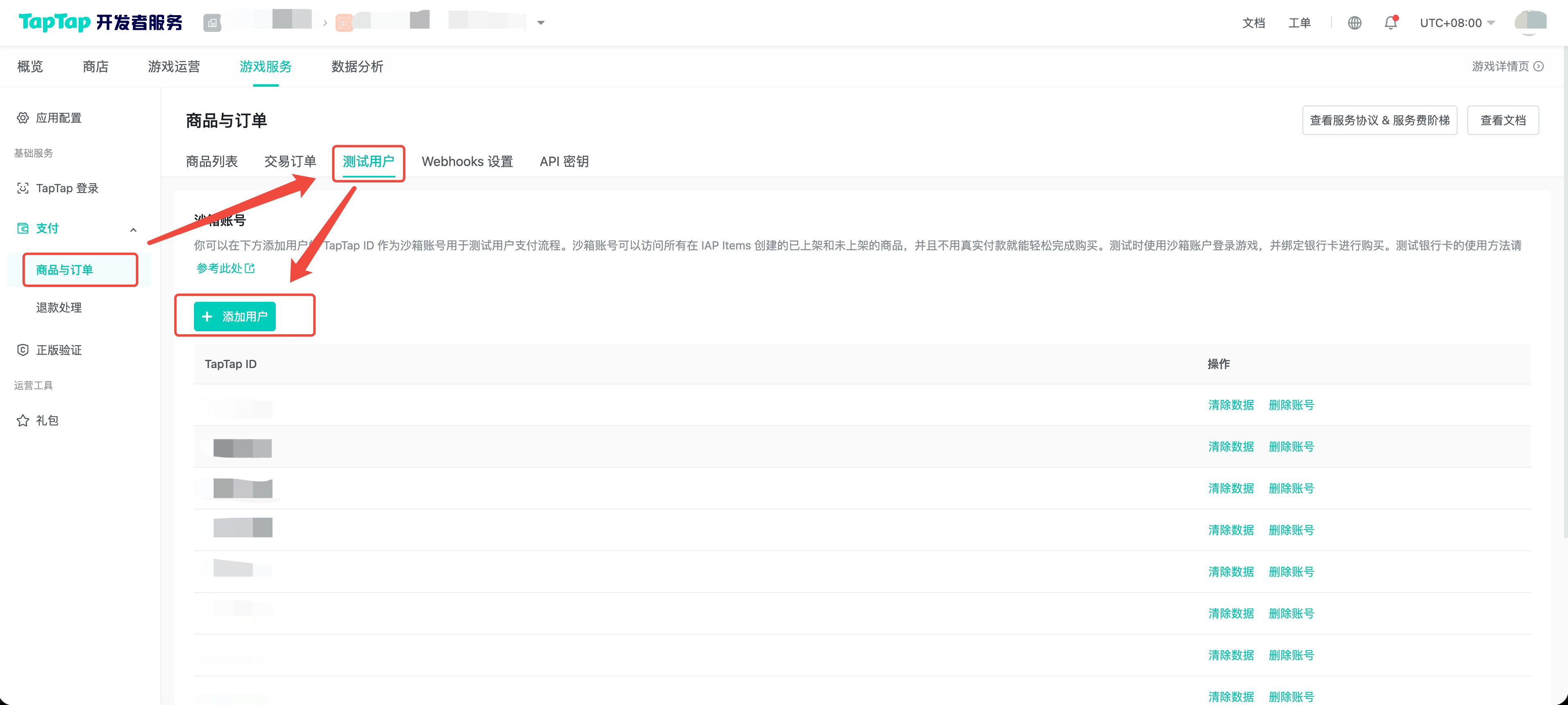
2. Start an IAP Test
Sign in to the game with an added sandbox account in your test build, then start an IAP purchase. After entering Checkout, select the payment method you want to test.
3. Confirm the Credit/Debit Card Provider
The Credit/Debit Card option shown in Checkout uses a card payment provider based on the product currency and server-side configuration. By default, SGD, HKD, USD, EUR, GBP, JPY, AUD, CAD, and NZD use Alipay+ Card. Other card-supported currencies use Stripe Card. The actual behavior follows the live server configuration.
4. Use Stripe Card Test Numbers
Stripe Card does not support payments below $0.5. When testing products, make sure the product price is at least $0.5. For more test numbers and scenarios, see the Stripe documentation.
For payment testing, use any future expiration date. CVC and other form fields can be any valid value.
Common card numbers:
| Test scenario | Card number | Notes |
|---|---|---|
| Successful payment | 4242424242424242 | Visa |
| Successful payment | 5555555555554444 | Mastercard |
| Generic decline | 4000000000000002 | Returns card_declined |
| Insufficient funds | 4000000000009995 | Returns insufficient_funds |
5. Use Alipay+ Card Test Numbers
Alipay+ Card test numbers are from the Alipay+ / Antom test card documentation. During payment testing, CVC, postal code, and expiration date can be any valid value. If the payment page asks for the first two digits of the payment password, enter any two digits.
Common card numbers:
| Test scenario | Card number | Notes |
|---|---|---|
| Successful payment | 4054695723100768 | Global Visa |
| Successful payment | 5162774114974622 | Global Mastercard |
| Successful payment | 9490220011669217 | Korea Hyundai |
| Error simulation | 4054692760174822 | Global Visa |
| Error simulation | 5162770472561357 | Global Mastercard |
You can also simulate other errors in the following ways:
- Use an invalid month, such as
13, to simulate an invalid expiration month. - Use a two-digit CVV, such as
99, to simulate a CVC error. - Set the payment amount to
11,1100, or1111to simulate a risk control failure. - Use card number
4035501000000008to simulate a 3D Secure frictionless scenario.